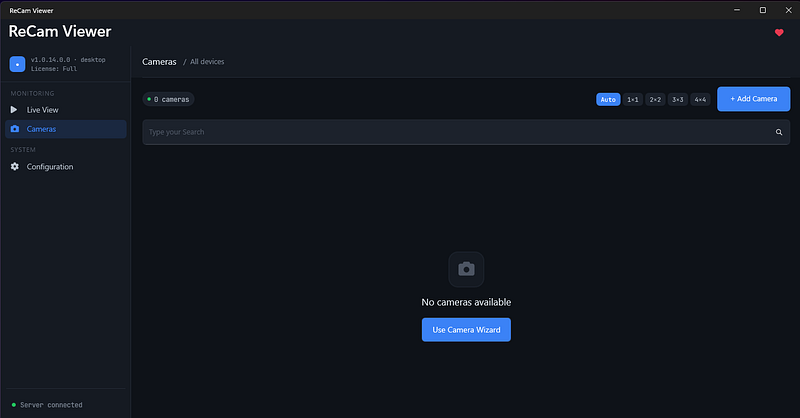
If you have installed IP cameras from different brands, you may already know the problem: one camera works in one vendor app, another camera works somewhere else, and a simple live view becomes a slow search through complicated surveillance software.
For many home, workshop, office, or small business setups, you do not need a full NVR system just to check a camera from your Windows PC. If the camera exposes an RTSP stream, or if it can be found on your local network, you can start with a lightweight IP camera viewer.
This guide shows how to view an IP camera on Windows using ReCam Viewer, a desktop app built for local RTSP/IP camera monitoring.
What you need
Before you start, make sure you have:
- A Windows PC connected to the same local network as the camera.
- The camera powered on and reachable through Wi-Fi or Ethernet.
- The camera username and password, if authentication is enabled.
- ReCam Viewer installed from the Microsoft Store.
If you already know the camera’s RTSP URL, you can add it manually. If you do not know it, ReCam Viewer can help you search the local network first.
Step 1: Open ReCam Viewer and start the camera wizard
After launching ReCam Viewer, open the camera area and select Use Camera Wizard. The wizard is designed for the common case where you know there is a camera on the network, but you do not want to manually test IP addresses and ports.
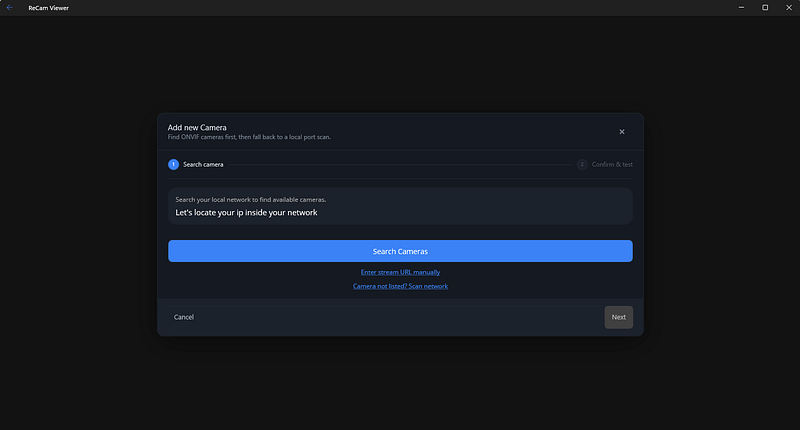
You can choose between two paths:
- Search Cameras if you want ReCam Viewer to scan your local network.
- Enter stream URL manually if you already have the RTSP URL.
For a first setup, the search option is usually faster.
Step 2: Search your local network
When the scan starts, ReCam Viewer checks candidate IP addresses and common camera ports on your local network. During the scan, you will see progress as addresses are tested.
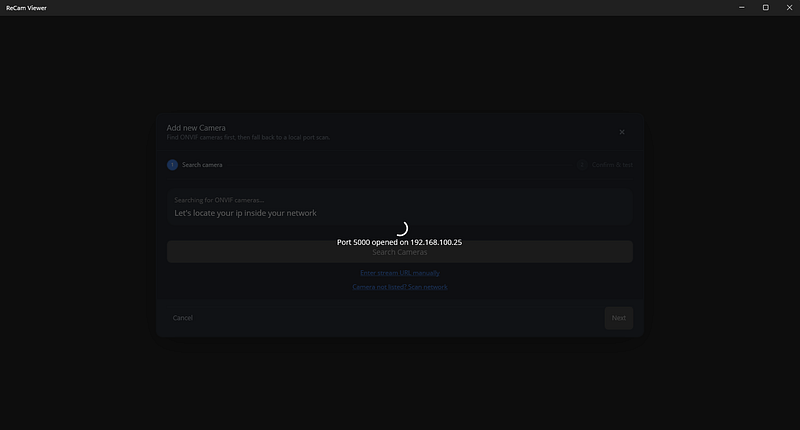
The goal is to find camera candidates quickly, especially devices that expose ONVIF information or an RTSP endpoint. You do not need to know the exact camera URL before starting.
Step 3: Pick the camera candidate
When ReCam Viewer finds possible cameras, it lists the detected candidates. The results can include the IP address, the discovered stream URL when available, and the detected port.
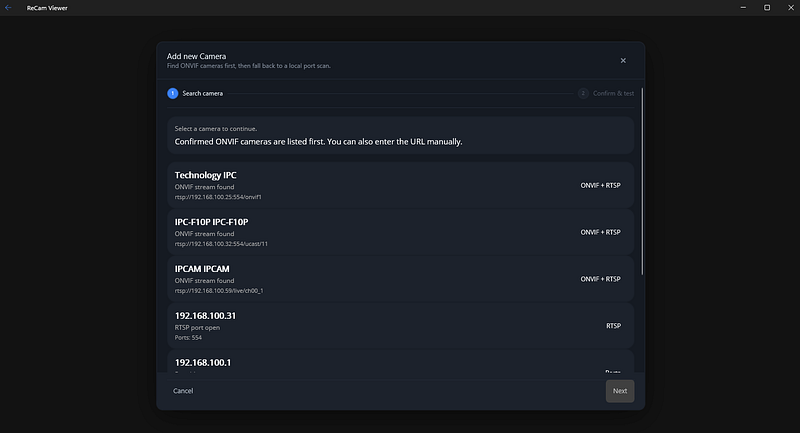
Choose the camera that matches your device. If the list contains more than one result, start with the entry that shows the most complete stream information, then continue to the confirmation step.
Step 4: Enter credentials and test the stream
Most IP cameras require a username and password. Enter the camera credentials, then press Test Camera. ReCam Viewer will try to open the stream and show a preview.
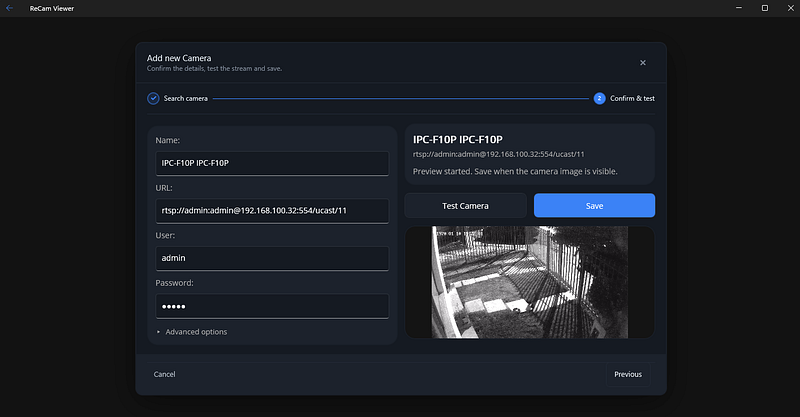
If the preview appears, save the camera. If it does not, check:
- The camera username and password.
- Whether the PC and camera are on the same network.
- Whether the camera has RTSP enabled in its admin settings.
- Whether your firewall or router is blocking local access.
Step 5: View the IP camera on Windows
After saving the camera, it becomes available inside ReCam Viewer. You can open the live view, monitor the stream, and keep the camera available without going back to the original vendor app every time.
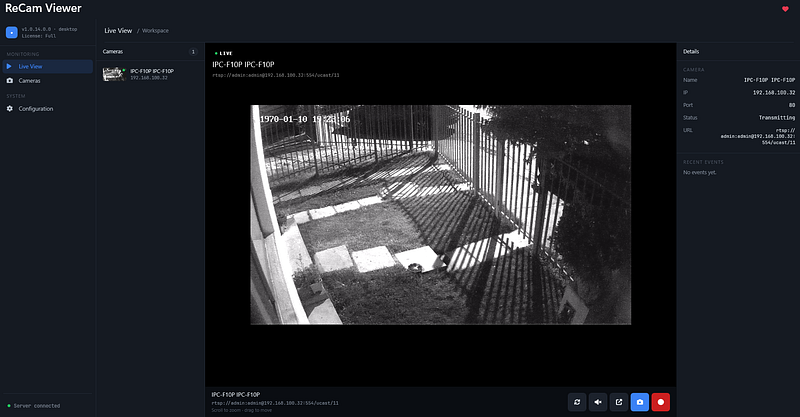
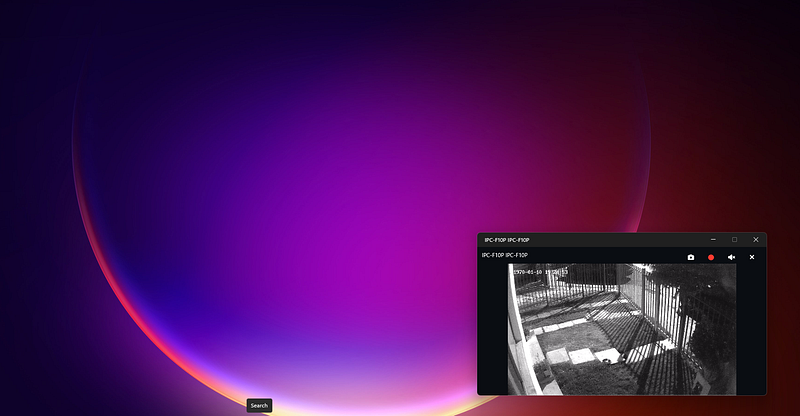
From the viewer, you can use ReCam features such as zoom, snapshots, local recording, and a compact overlay window that stays visible while you work in other apps.
When this is better than a full NVR
An NVR is useful when you need 24/7 recording, alert rules, retention policies, user management, and a larger surveillance installation.
But if your goal is simply to view an IP camera on Windows, test an RTSP stream, keep a small group of cameras available, or monitor a local camera while working, a lightweight viewer is often enough.
ReCam Viewer is built for that simpler workflow: local camera viewing, quick setup, snapshots, recording, and no required cloud account.
Quick troubleshooting
If your camera does not appear during search, try opening the camera’s web admin page from the same Windows PC. If that does not load, the PC probably cannot reach the camera yet.
If the camera appears but the preview fails, the most common issue is an invalid RTSP path or credentials. Some camera brands use different RTSP paths for the main stream and sub stream, so check the camera manual or admin settings.
If the stream works in the wizard but later disconnects, verify that the camera has a stable network connection and that the Windows device is not switching networks.
Final recommendation
For most small local setups, start with the camera wizard. It avoids the slowest part of IP camera setup: guessing the camera address, port, and stream URL by hand.
Install ReCam Viewer from the Microsoft Store, search your local network, test the stream, and save the camera once the preview is visible.