
This article is an update of an old project I had implemented in Xamarin Forms. This time, I decided to re-implement it instead of upgrading the project and implementing the solution using handlers.
You can view the original article here:
See a RTSP streaming on Xamarin FormsSpanish version: https://medium.com/p/55f2fb295593medium.com
In broad terms, handlers are components responsible for converting MAUI’s cross-platform controls into native controls specific to each platform (iOS, Android, Windows, etc.).
Their main functions are:
- Visual Representation: Transforming MAUI controls into native UI elements for each platform.
- Behavior: Managing all platform-specific interactions and events.
- Performance: Optimizing performance by using native controls instead of custom elements.
- Consistency: Ensuring consistent appearance and behavior across all platforms while respecting each platform’s design conventions.
Here is an example diagram of how a button maps to its respective component per platform:

If you want to see more information about this topic you can go to this URL:
.NET MAUI handlers — .NET MAUILearn about .NET MAUI handlers, which map cross-platform controls to performant native controls on each platform.learn.microsoft.com
In the case of Android, I will continue using Alexey Vasilyev’s library as it is a good RTSP client and the project is actively maintained with frequent releases. They are currently on version 3.1.2, which was released just a few days ago as of the time I’m writing this article.
You can view the library here:
GitHub — alexeyvasilyev/rtsp-client-android: Lightweight RTSP client library for AndroidLightweight RTSP client library for Android. Contribute to alexeyvasilyev/rtsp-client-android development by creating…github.com
I’ve been asked how I generated the library on a few occasions. I’ll briefly mention this since it’s not covered in this article, but essentially, I download the project from the specified GitHub repository, open it in Android Studio, and generate the AAR file from there. After that, I import it into an Android binding library project so that it’s available in our MAUI project.
So, let’s create a new project in Visual Studio for MAUI. In this particular case, I wanted to be super original, so I named it Maui.Rtsp:
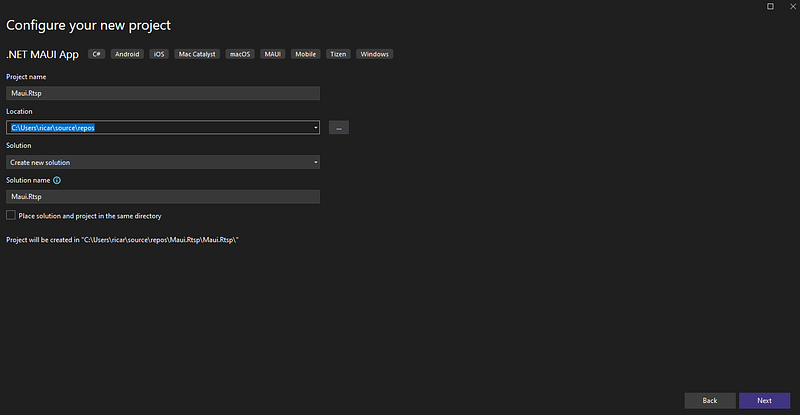
The project created, as you’ll see, maintains the basic structure of a MAUI template, and if you run it, you’ll see the typical ‘Hello World’ of a mobile application. Once this step is completed, we’ll create a folder named Controls and add our CameraView.cs class to it:
public interface ICameraView : IView {
    public string Url { get; set; }
    public string User { get; set; }
    public string Password { get; set; }
}


public class CameraView : View, ICameraView
{
    public static readonly BindableProperty UrlProperty =
        BindableProperty.Create(nameof(Url), typeof(string), typeof(CameraView), default(string));


    public static readonly BindableProperty UserProperty =
        BindableProperty.Create(nameof(User), typeof(string), typeof(CameraView), default(string));


    public static readonly BindableProperty PasswordProperty =
        BindableProperty.Create(nameof(Password), typeof(string), typeof(CameraView), default(string));


    public string Url
    {
        get => (string)GetValue(UrlProperty);
        set => SetValue(UrlProperty, value);
    }


    public string User
    {
        get => (string)GetValue(UserProperty);
        set => SetValue(UserProperty, value);
    }


    public string Password
    {
        get => (string)GetValue(PasswordProperty);
        set => SetValue(PasswordProperty, value);
    }
}For the purposes of this example, we only kept three properties: the URL, the username, and the password, which are necessary to access the RTSP stream.
Now comes the fun part. Inside the Platforms folder, there is a folder for each platform. I decided to focus on Android and leave the door open for iOS. So, in the Android folder, we'll create our handler, which will be named CameraViewHandler.Android.cs, and in iOS, it will be named CameraViewHandler.iOS.cs:
public class CameraViewHandler : ViewHandler<ICameraView, SurfaceView>
{
    private RtspClient rtspClient;
    private RtspListener rtspListener;


    public static IPropertyMapper<ICameraView, CameraViewHandler> PropertyMapper = new PropertyMapper<ICameraView, CameraViewHandler>(ViewHandler.ViewMapper)
    {
        [nameof(ICameraView.Url)] = MapUrl,
        [nameof(ICameraView.User)] = MapUser,
        [nameof(ICameraView.Password)] = MapPassword
    };


    public CameraViewHandler() : base(PropertyMapper)
    {
    }


    public CameraViewHandler(IPropertyMapper mapper) : base(mapper ?? PropertyMapper)
    {
    }


    protected override SurfaceView CreatePlatformView()
    {
        var context = Context;
        var surfaceView = new SurfaceView(context);


        surfaceView.Holder.AddCallback(new SurfaceCallbackImplementation(this));
        rtspListener = new RtspListener(surfaceView.Holder.Surface, 0, 0);


        return surfaceView;
    }


    protected override void ConnectHandler(SurfaceView platformView)
    {
        base.ConnectHandler(platformView);
        rtspClient = new RtspClient();
        UpdateUrl();
        UpdateUser();
        UpdatePassword();
    }


    protected override void DisconnectHandler(SurfaceView platformView)
    {
        platformView.Holder.RemoveCallback(new SurfaceCallbackImplementation(this));
        rtspClient?.Dispose();
        rtspClient = null;
        rtspListener?.Dispose();
        rtspListener = null;
        base.DisconnectHandler(platformView);
    }


    public static void MapUrl(CameraViewHandler handler, ICameraView view)
    {
        handler.UpdateUrl();
        _= handler.RestartRtspAsync();
    }


    public static void MapUser(CameraViewHandler handler, ICameraView view)
    {
        handler.UpdateUser();
    }


    public static void MapPassword(CameraViewHandler handler, ICameraView view)
    {
        handler.UpdatePassword();
    }


    private void UpdateUrl()
    {
        if (VirtualView != null)
        {
            rtspClient.Url = VirtualView.Url ?? "";
        }
    }


    private void UpdateUser()
    {
        if (VirtualView != null && VirtualView is CameraView cameraView)
        {
            rtspClient.Username = cameraView.User ?? "";
        }
    }


    private void UpdatePassword()
    {
        if (VirtualView != null && VirtualView is CameraView cameraView)
        {
            rtspClient.Password = cameraView.Password ?? "";
        }
    }


    public async Task RestartRtspAsync()
    {
        if (rtspClient != null)
        {
            // Stop streaming
            await rtspClient.StopStreaming();


            // Update the data
            UpdateUrl();
            UpdateUser();
            UpdatePassword();


            // Restart
            await rtspClient.StartStreaming(PlatformView);
        }
    }


    private class SurfaceCallbackImplementation : Java.Lang.Object, ISurfaceHolderCallback
    {
        private readonly CameraViewHandler _handler;


        public SurfaceCallbackImplementation(CameraViewHandler handler)
        {
            _handler = handler;
        }


        public void SurfaceChanged(ISurfaceHolder holder, [GeneratedEnum] Format format, int width, int height)
        {
        }


        public void SurfaceCreated(ISurfaceHolder holder)
        {
            if (_handler.rtspClient != null)
            {
                System.Threading.Tasks.Task.Run(async () =>
                {
                    await _handler.rtspClient.StartStreaming(_handler.PlatformView);
                });
            }
        }


        public void SurfaceDestroyed(ISurfaceHolder holder)
        {
        }
    }
}This is the iOS handler:
public class CameraViewHandler : ViewHandler<ICameraView, UIView>
{
    public static IPropertyMapper<ICameraView, CameraViewHandler> Mapper = new PropertyMapper<ICameraView, CameraViewHandler>(ViewHandler.ViewMapper)
    {
        [nameof(ICameraView.Url)] = MapUrl,
        [nameof(ICameraView.User)] = MapUser,
        [nameof(ICameraView.Password)] = MapPassword
    };


    public CameraViewHandler() : base(Mapper)
    {
    }


    protected override UIView CreatePlatformView() => new UIView();


    protected override void ConnectHandler(UIView platformView)
    {
        base.ConnectHandler(platformView);
    }


    public static void MapUrl(CameraViewHandler handler, ICameraView view)
    {
    }
}Well, the most important aspect of the class in Android is that we inherit from ViewHandler. We no longer need to use those strange attributes that had to be placed in the namespace. We must specify the base control, which in this case is an ICameraView, and the native control to which it will eventually be translated. For camera visualization, we'll use a SurfaceView.
We override the CreatePlatformView method to create ours SurfaceView and add the callback to react to surface events. As you'll see, there is also an RtspClient object, which is actually the object from the library that handles the connection to the camera. We'll implement this next.
We need to create two classes: RtspClient and RtspListener. The client orchestrates the start and end of the communication, while the listener receives the frames and enqueues them to be displayed on the Surface.
public class RtspClient
{
    private Com.Alexvas.Rtsp.RtspClient localClient;
    private AtomicBoolean rtspStopped;
    public string Url { get; set; }
    public string Username { get; set; }
    public string Password { get; set; }


    public async Task<bool> StartStreaming(SurfaceView surfaceView)
    {
        return await Task.Run(() =>
        {
            try
        {
            Uri uri = new Uri(this.Url);
            var socket = NetUtils.CreateSocketAndConnect(uri.Host, 554, 5000);


            rtspStopped = new AtomicBoolean(false);
            var listener = new RtspListener(surfaceView.Holder.Surface, surfaceView.Width, surfaceView.Height);


            localClient = new Com.Alexvas.Rtsp.RtspClient.Builder(socket, this.Url, rtspStopped, listener)
                .RequestVideo(true)
                .RequestAudio(false)
                .WithDebug(true)
                .WithCredentials(this.Username, this.Password)
                .Build();
            localClient.Execute();


            NetUtils.CloseSocket(socket);
            return true;
        }
        catch (Exception ex)
        {
            Console.WriteLine($"Error starting RTSP stream: {ex.Message}");
            return false;
        }
        });
    }


    public async Task StopStreaming()
    {
        try
        {
            if (localClient != null && rtspStopped != null)
            {

                localClient = null;
                rtspStopped.Set(true);


                // Wait a second to be sre the streaming stopped
                await Task.Delay(1000);
            }
        }
        catch (Exception ex)
        {
            Console.WriteLine($"Error stopping RTSP stream: {ex.Message}");
        }
        finally
        {
            localClient = null;
            rtspStopped = null;
        }
    }


    public void Dispose()
    {
        localClient?.Dispose();
    }
}public class RtspListener : Java.Lang.Object, Com.Alexvas.Rtsp.RtspClient.IRtspClientListener, VideoDecodeThread.IVideoDecoderListener
{
public bool RtspStopped { get; set; }
private VideoFrameQueue videoFrameQueue;
private AudioFrameQueue audioFrameQueue;
private string videoMimeType = "";
private string audioMimeType = "";
private int audioSampleRate = 0;
private int audioChannelCount = 0;
private byte[] audioCodecConfig = null;
VideoDecodeThread videoDecodeThread;
Surface _surface;
int _width;
int _height;
public RtspListener(Surface surface, int width, int height)
{
_surface = surface;
_width = width;
_height = height;
videoFrameQueue = new VideoFrameQueue(100);
audioFrameQueue = new AudioFrameQueue(100);
}
public void Dispose()
{
}
public void Disposed()
{
}
public void DisposeUnlessReferenced()
{
}
public void Finalized()
{
}
public void OnRtspAudioSampleReceived(byte[] data, int offset, int length, long timestamp)
{
}
public void OnRtspConnected(Com.Alexvas.Rtsp.RtspClient.SdpInfo sdpInfo)
{
if (sdpInfo.VideoTrack != null)
{
videoFrameQueue.Clear();
switch (sdpInfo.VideoTrack.VideoCodec)
{
case Com.Alexvas.Rtsp.RtspClient.VideoCodecH264:
videoMimeType = "video/avc";
break;
case Com.Alexvas.Rtsp.RtspClient.VideoCodecH265:
videoMimeType = "video/hevc";
break;
}
if (sdpInfo.AudioTrack != null)
{
switch (sdpInfo.AudioTrack.AudioCodec)
{
case Com.Alexvas.Rtsp.RtspClient.AudioCodecAac:
audioMimeType = "audio/mp4a-latm";
break;
}
}
}
var sps = sdpInfo.VideoTrack.Sps;
var pps = sdpInfo.VideoTrack.Pps;
if (sps != null && pps != null)
{
var data = new byte[sps.Count + pps.Count];
sps.CopyTo(data, 0);
pps.CopyTo(data, sps.Count);
var videoFrame = new VideoFrame(
codecType: VideoCodecType.H264,
isKeyframe: true,
data: data,
offset: 0,
length: data.Length,
timestampMs: 0,
capturedTimestampMs: DateTimeOffset.UtcNow.ToUnixTimeMilliseconds()
);
videoFrameQueue.Push(videoFrame);
}
if (sdpInfo.AudioTrack != null)
{
audioFrameQueue.Clear();
switch (sdpInfo.AudioTrack.AudioCodec)
{
case Com.Alexvas.Rtsp.RtspClient.AudioCodecAac:
audioMimeType = "audio/mp4a-latm";
break;
}
audioSampleRate = sdpInfo.AudioTrack.SampleRateHz;
audioChannelCount = sdpInfo.AudioTrack.Channels;
audioCodecConfig = sdpInfo.AudioTrack.Config.ToArray();
}
OnRtspClientConnected();
}
public void OnRtspClientConnected()
{
if (!string.IsNullOrWhiteSpace(videoMimeType))
{
videoDecodeThread = new VideoDecodeThread(
_surface,
videoMimeType,
_width,
_height,
0, // This is the rotation
videoFrameQueue,
this, // IVideoDecoderListener
// or Hardware, depending on your needs
VideoDecodeThread.DecoderType.Software
);
videoDecodeThread.Start();
}
}
public void OnRtspConnecting()
{
}
public void OnRtspDisconnected()
{
RtspStopped = true;
}
public void OnRtspFailed(string message)
{
RtspStopped = true;
}
public void OnRtspFailedUnauthorized()
{
}
public void OnRtspVideoNalUnitReceived(byte[] data, int offset, int length, long timestamp)
{
var nals = new List<VideoCodecUtils.NalUnit>();
var numNals = VideoCodecUtils.GetH264NalUnits(data, offset, length - 1, nals);
if (length > 0)
{
bool isKeyframe = nals.Exists(nal => nal.Type == 5); // For H.264, NAL type 5 is IDR (keyframe)
var videoFrame = new VideoFrame(
codecType: VideoCodecType.H264,
isKeyframe: isKeyframe,
data: data,
offset: offset,
length: length,
timestampMs: timestamp,
capturedTimestampMs: DateTimeOffset.UtcNow.ToUnixTimeMilliseconds()
);
videoFrameQueue.Push(videoFrame);
}
}
public void SetJniIdentityHashCode(int value)
{
}
public void SetJniManagedPeerState(JniManagedPeerStates value)
{
}
public void SetPeerReference(JniObjectReference reference)
{
}
public void UnregisterFromRuntime()
{
}
public void OnRtspDisconnecting()
{
}
public void OnVideoDecoderFormatChanged(int width, int height) { }
public void OnVideoDecoderFirstFrameDecoded() { }
public void OnVideoDecoderFailed(string message) { }
public void OnVideoDecoderFirstFrameRendered() { }
public void OnVideoDecoderStarted() { }
public void OnVideoDecoderStopped() { }
}Once we have finished with our handlers, we need to register the control as follows in the MauiProgram.cs file:
.ConfigureMauiHandlers(handlers =>
{
    handlers.AddHandler<CameraView, CameraViewHandler>();
})Once the control is registered, we can use it within our project. In this case, I modified the MainPage to include three entries for the URL, username, and password. Additionally, I added the CameraView to display the camera feeds using the data entered on the screen:
<?xml version="1.0" encoding="utf-8" ?>
<ContentPage xmlns="http://schemas.microsoft.com/dotnet/2021/maui"
             xmlns:x="http://schemas.microsoft.com/winfx/2009/xaml"
             xmlns:Ctrls="clr-namespace:Maui.Rtsp.Controls"
             x:Class="Maui.Rtsp.MainPage">


    <ScrollView>
        <VerticalStackLayout
            Padding="15,0"
            Spacing="20">
            <Image
                Source="dotnet_bot.png"
                HeightRequest="160"
                Aspect="AspectFit"
                SemanticProperties.Description="dot net bot in a race car number eight" />


            <Label
                Text="Hello, Camera!"
                Style="{StaticResource Headline}"
                FontSize="25" />
            <Entry x:Name="txtUrl" Placeholder="Url" Text="rtsp://192.168.100.32"/>
            <Entry x:Name="txtUser" Placeholder="Username" Text="admin"/>
            <Entry x:Name="txtPassword" Placeholder="Password" Text="12345"/>
            <Button
                x:Name="btnCheck"
                Text="Check device"
                SemanticProperties.Hint="Counts the number of times you click"
                Clicked="OnbtnCheckClicked"
                HorizontalOptions="Fill" />


            <Ctrls:CameraView x:Name="cameraView" Url="" HorizontalOptions="FillAndExpand"
                              HeightRequest="200" User="" Password="">

            </Ctrls:CameraView>
        </VerticalStackLayout>
    </ScrollView>


</ContentPage>If we run the project, it looks like this:

Curious facts:
- Not everything went smoothly in this mini-project. The RTSP library has dependencies on ExoPlayer, and when adding the NuGet package, it caused a series of inconsistencies within the project. So, to save you some headaches and make your life easier, you need to force certain versions of the packages. I had to add the following packages and configurations to the project file:
<PropertyGroup>
	<TargetFrameworks>net8.0-android34.0</TargetFrameworks>
	<OutputType>Exe</OutputType>
	<RootNamespace>Maui.Rtsp</RootNamespace>
	<UseMaui>true</UseMaui>
	<SingleProject>true</SingleProject>
	<ImplicitUsings>enable</ImplicitUsings>
	<Nullable>enable</Nullable>
	<ApplicationTitle>Maui.Rtsp</ApplicationTitle>
	<ApplicationId>com.companyname.maui.rtsp</ApplicationId>
	<ApplicationDisplayVersion>1.0</ApplicationDisplayVersion>
	<ApplicationVersion>1</ApplicationVersion>
	<SupportedOSPlatformVersion Condition="$([MSBuild]::GetTargetPlatformIdentifier('$(TargetFramework)')) == 'android'">24.0</SupportedOSPlatformVersion>
	<AndroidEnableD8>true</AndroidEnableD8>
	<AndroidUseAapt2>True</AndroidUseAapt2>
	<AndroidCreatePackagePerAbi>false</AndroidCreatePackagePerAbi>
	<AndroidSupportedAbis>armeabi-v7a;x86;arm64-v8a;x86_64</AndroidSupportedAbis>
</PropertyGroup>


<ItemGroup>
	<PackageReference Include="Microsoft.Maui.Controls" Version="8.0.80" />
	<PackageReference Include="Microsoft.Maui.Controls.Compatibility" Version="8.0.80" />
	<PackageReference Include="Microsoft.Extensions.Logging.Debug" Version="8.0.0" />
	<PackageReference Include="Xamarin.AndroidX.Media3.ExoPlayer" Version="1.1.1" />
	<PackageReference Include="Xamarin.AndroidX.Collection" Version="1.4.2" />
	<PackageReference Include="Xamarin.AndroidX.Collection.Ktx" Version="1.4.0.6" />
	<PackageReference Include="Xamarin.AndroidX.Lifecycle.Runtime.Ktx" Version="2.8.4" />
	<PackageReference Include="Xamarin.AndroidX.Lifecycle.LiveData.Ktx" Version="2.8.4" />
	<PackageReference Include="Xamarin.AndroidX.Lifecycle.ViewModel.Ktx" Version="2.8.4" />
</ItemGroup>- The iOS handler was not implemented in this article, but in a similar project, and given the versatility of handlers, I used the VLC control to render the camera streaming for iOS. If you’d like to see how to perform this integration, you can check out this article:
In other articles, I have reviewed how to integrate some RTSP libraries for camera visualization in mobile…medium.comGitHub - rretamal/Maui-RTSP
Contribute to rretamal/Maui-RTSP development by creating an account on GitHub.github.com
If you want to see it working you can install the app:
ReCam Viewer — Apps on Google Play
Happy Coding!