
English version: https://medium.com/@rretamal.dev/viewing-an-rtsp-stream-in-net-maui-6948d30a2b21
Este artículo corresponde a una actualización de un antiguo proyecto que había implementado en Xamarin Forms, en esta ocasión quise reimplementarlo en vez de hacer un upgrade del proyecto e implementar la solución usando handlers.
El artículo original lo puedes ver aquí:
Ver un streaming RTSP en Xamarin FormsEnglish version: https://medium.com/p/700649d36a6dmedium.com
A grandes rasgos los handlers son componentes que se encargan de convertir los controles multiplataforma de MAUI en controles nativos específicos de cada plataforma (iOS, Android, Windows, etc).
Su función principal es:
- Representación visual: transformar los controles de MAUI en elementos de interfaz de usuario nativos por plataforma
- Comportamiento: manejar todas las interacciones y eventos específicos para cada plataforma
- Rendimiento: optimizar el rendimiento al utilizar controles nativos en lugar de elementos personalizados
- Consistencia: mantener una apariencia y comportamiento coherente en todas las plataformas respetando de esta manera las convenciones de diseño de cada plataforma
Este un diagrama de ejemplo de como un botón mapea a su componente respectivo por plataforma:

En caso de que quieras profundizar en este tema te dejo este link
.NET MAUI handlers - .NET MAUILearn about .NET MAUI handlers, which map cross-platform controls to performant native controls on each platform.learn.microsoft.com
En el caso de Android seguire usando la librería de Alexey Vasilyev ya que es un buen cliente RTSP y el proyecto se mantiene activo con releases constantes, actualmente estan en la version 3.1.2 liberada hace un par de días desde que estoy escribiendo este artículo, la librería la puedes ver aquí:
GitHub - alexeyvasilyev/rtsp-client-android: Lightweight RTSP client library for AndroidLightweight RTSP client library for Android. Contribute to alexeyvasilyev/rtsp-client-android development by creating…github.com
En algunas ocasiones me han preguntado como he hecho para generar la librería, este aspecto lo mencionaré brevemente ya que no está abarcado en este artículo pero básicamente me descargo el proyecto del github indicado, lo abro en Android Studio y genero el archivo aar desde ahí, a partir de ese punto lo importo en un proyecto Android binding library para que esté disponible en nuestro proyecto MAUI. La configuración es bastante sencilla y no representó ningún tipo de dificultad o configuración extra que haya tenido que hacer para poder usarla.
Así que nos crearemos un nuevo proyecto en Visual Studio para MAUI, en este caso en particular quise ser súper original así que le puse Maui.Rtsp:
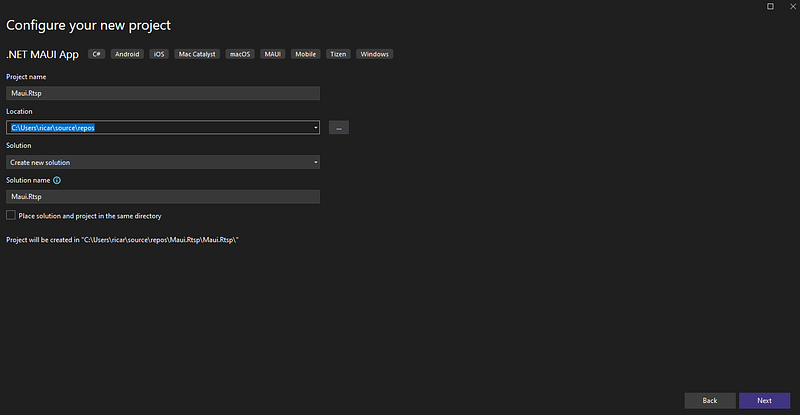
El proyecto creado como verás mantiene la estructura básica de un template de MAUI y si lo ejecutas podrás ver el típico Hello World de la aplicación móvil.
Completado este paso nos crearemos una carpeta Controls y en ella agregaremos nuestra clase CameraView.cs:
public interface ICameraView : IView {
    public string Url { get; set; }
    public string User { get; set; }
    public string Password { get; set; }
}


public class CameraView : View, ICameraView
{
    public static readonly BindableProperty UrlProperty =
        BindableProperty.Create(nameof(Url), typeof(string), typeof(CameraView), default(string));


    public static readonly BindableProperty UserProperty =
        BindableProperty.Create(nameof(User), typeof(string), typeof(CameraView), default(string));


    public static readonly BindableProperty PasswordProperty =
        BindableProperty.Create(nameof(Password), typeof(string), typeof(CameraView), default(string));


    public string Url
    {
        get => (string)GetValue(UrlProperty);
        set => SetValue(UrlProperty, value);
    }


    public string User
    {
        get => (string)GetValue(UserProperty);
        set => SetValue(UserProperty, value);
    }


    public string Password
    {
        get => (string)GetValue(PasswordProperty);
        set => SetValue(PasswordProperty, value);
    }
}Para efectos del ejemplo solo mantuvimos tres propiedades que vienen a ser la URL, el usuario y el password para poder acceder al rtsp.
Y ahora vienen lo divertido, tenemos dentro de la carpeta Platforms una carpeta por cada plataforma, yo me quise enfocar en Android y dejar la puerta abierta para iOS, así que en la carpeta Android nos crearemos nuestro handler que se llamará CameraViewHandler.Android.cs y en iOS se llamara CameraViewHandler.iOS.cs:
public class CameraViewHandler : ViewHandler<ICameraView, SurfaceView>
{
    private RtspClient rtspClient;
    private RtspListener rtspListener;


    public static IPropertyMapper<ICameraView, CameraViewHandler> PropertyMapper = new PropertyMapper<ICameraView, CameraViewHandler>(ViewHandler.ViewMapper)
    {
        [nameof(ICameraView.Url)] = MapUrl,
        [nameof(ICameraView.User)] = MapUser,
        [nameof(ICameraView.Password)] = MapPassword
    };


    public CameraViewHandler() : base(PropertyMapper)
    {
    }


    public CameraViewHandler(IPropertyMapper mapper) : base(mapper ?? PropertyMapper)
    {
    }


    protected override SurfaceView CreatePlatformView()
    {
        var context = Context;
        var surfaceView = new SurfaceView(context);


        surfaceView.Holder.AddCallback(new SurfaceCallbackImplementation(this));
        rtspListener = new RtspListener(surfaceView.Holder.Surface, 0, 0);


        return surfaceView;
    }


    protected override void ConnectHandler(SurfaceView platformView)
    {
        base.ConnectHandler(platformView);
        rtspClient = new RtspClient();
        UpdateUrl();
        UpdateUser();
        UpdatePassword();
    }


    protected override void DisconnectHandler(SurfaceView platformView)
    {
        platformView.Holder.RemoveCallback(new SurfaceCallbackImplementation(this));
        rtspClient?.Dispose();
        rtspClient = null;
        rtspListener?.Dispose();
        rtspListener = null;
        base.DisconnectHandler(platformView);
    }


    public static void MapUrl(CameraViewHandler handler, ICameraView view)
    {
        handler.UpdateUrl();
        _= handler.RestartRtspAsync();
    }


    public static void MapUser(CameraViewHandler handler, ICameraView view)
    {
        handler.UpdateUser();
    }


    public static void MapPassword(CameraViewHandler handler, ICameraView view)
    {
        handler.UpdatePassword();
    }


    private void UpdateUrl()
    {
        if (VirtualView != null)
        {
            rtspClient.Url = VirtualView.Url ?? "";
        }
    }


    private void UpdateUser()
    {
        if (VirtualView != null && VirtualView is CameraView cameraView)
        {
            rtspClient.Username = cameraView.User ?? "";
        }
    }


    private void UpdatePassword()
    {
        if (VirtualView != null && VirtualView is CameraView cameraView)
        {
            rtspClient.Password = cameraView.Password ?? "";
        }
    }


    public async Task RestartRtspAsync()
    {
        if (rtspClient != null)
        {
            // Stop streaming
            await rtspClient.StopStreaming();


            // Update the data
            UpdateUrl();
            UpdateUser();
            UpdatePassword();


            // Restart
            await rtspClient.StartStreaming(PlatformView);
        }
    }


    private class SurfaceCallbackImplementation : Java.Lang.Object, ISurfaceHolderCallback
    {
        private readonly CameraViewHandler _handler;


        public SurfaceCallbackImplementation(CameraViewHandler handler)
        {
            _handler = handler;
        }


        public void SurfaceChanged(ISurfaceHolder holder, [GeneratedEnum] Format format, int width, int height)
        {
        }


        public void SurfaceCreated(ISurfaceHolder holder)
        {
            if (_handler.rtspClient != null)
            {
                System.Threading.Tasks.Task.Run(async () =>
                {
                    await _handler.rtspClient.StartStreaming(_handler.PlatformView);
                });
            }
        }


        public void SurfaceDestroyed(ISurfaceHolder holder)
        {
        }
    }
}Este el de iOS:
public class CameraViewHandler : ViewHandler<ICameraView, UIView>
{
    public static IPropertyMapper<ICameraView, CameraViewHandler> Mapper = new PropertyMapper<ICameraView, CameraViewHandler>(ViewHandler.ViewMapper)
    {
        [nameof(ICameraView.Url)] = MapUrl,
        [nameof(ICameraView.User)] = MapUser,
        [nameof(ICameraView.Password)] = MapPassword
    };


    public CameraViewHandler() : base(Mapper)
    {
    }


    protected override UIView CreatePlatformView() => new UIView();


    protected override void ConnectHandler(UIView platformView)
    {
        base.ConnectHandler(platformView);
    }


    public static void MapUrl(CameraViewHandler handler, ICameraView view)
    {
    }
}Bueno, lo más importante de la clase en Android es que heredamos de ViewHandler, ya no tenemos que utilizar esos atributos raros que había que colocar en el namespace y tenemos que especificar el control base, en este caso es un ICameraView y el control nativo que es al que se traducirá finalmente, para efectos de la visualización de la cámara usaremos un Surfaceview.
Se hizo un override del método CreatePlatformView para crear nuestro SurfaceView y agregar el callback y así reaccionar a los eventos del surface, como verás también hay un objeto RtspClient que es realmente el objeto de la librería para hacer la conexión con la cámara y es el que implementaremos a continuación.
Tenemos que crearnos dos clases RtspClient y RtspListener, el client es el que orquestará el inicio y final de la comunicación, el listener es el que irá recibiendo los frames y los irá encolando para que sean mostrados en el Surface.
public class RtspClient
{
    private Com.Alexvas.Rtsp.RtspClient localClient;
    private AtomicBoolean rtspStopped;
    public string Url { get; set; }
    public string Username { get; set; }
    public string Password { get; set; }


    public async Task<bool> StartStreaming(SurfaceView surfaceView)
    {
        return await Task.Run(() =>
        {
            try
        {
            Uri uri = new Uri(this.Url);
            var socket = NetUtils.CreateSocketAndConnect(uri.Host, 554, 5000);


            rtspStopped = new AtomicBoolean(false);
            var listener = new RtspListener(surfaceView.Holder.Surface, surfaceView.Width, surfaceView.Height);


            localClient = new Com.Alexvas.Rtsp.RtspClient.Builder(socket, this.Url, rtspStopped, listener)
                .RequestVideo(true)
                .RequestAudio(false)
                .WithDebug(true)
                .WithCredentials(this.Username, this.Password)
                .Build();
            localClient.Execute();


            NetUtils.CloseSocket(socket);
            return true;
        }
        catch (Exception ex)
        {
            Console.WriteLine($"Error starting RTSP stream: {ex.Message}");
            return false;
        }
        });
    }


    public async Task StopStreaming()
    {
        try
        {
            if (localClient != null && rtspStopped != null)
            {

                localClient = null;
                rtspStopped.Set(true);


                // Wait a second to be sre the streaming stopped
                await Task.Delay(1000);
            }
        }
        catch (Exception ex)
        {
            Console.WriteLine($"Error stopping RTSP stream: {ex.Message}");
        }
        finally
        {
            localClient = null;
            rtspStopped = null;
        }
    }


    public void Dispose()
    {
        localClient?.Dispose();
    }
}public class RtspListener : Java.Lang.Object, Com.Alexvas.Rtsp.RtspClient.IRtspClientListener, VideoDecodeThread.IVideoDecoderListener
{
public bool RtspStopped { get; set; }
private VideoFrameQueue videoFrameQueue;
private AudioFrameQueue audioFrameQueue;
private string videoMimeType = "";
private string audioMimeType = "";
private int audioSampleRate = 0;
private int audioChannelCount = 0;
private byte[] audioCodecConfig = null;
VideoDecodeThread videoDecodeThread;
Surface _surface;
int _width;
int _height;
public RtspListener(Surface surface, int width, int height)
{
_surface = surface;
_width = width;
_height = height;
videoFrameQueue = new VideoFrameQueue(100);
audioFrameQueue = new AudioFrameQueue(100);
}
public void Dispose()
{
}
public void Disposed()
{
}
public void DisposeUnlessReferenced()
{
}
public void Finalized()
{
}
public void OnRtspAudioSampleReceived(byte[] data, int offset, int length, long timestamp)
{
}
public void OnRtspConnected(Com.Alexvas.Rtsp.RtspClient.SdpInfo sdpInfo)
{
if (sdpInfo.VideoTrack != null)
{
videoFrameQueue.Clear();
switch (sdpInfo.VideoTrack.VideoCodec)
{
case Com.Alexvas.Rtsp.RtspClient.VideoCodecH264:
videoMimeType = "video/avc";
break;
case Com.Alexvas.Rtsp.RtspClient.VideoCodecH265:
videoMimeType = "video/hevc";
break;
}
if (sdpInfo.AudioTrack != null)
{
switch (sdpInfo.AudioTrack.AudioCodec)
{
case Com.Alexvas.Rtsp.RtspClient.AudioCodecAac:
audioMimeType = "audio/mp4a-latm";
break;
}
}
}
var sps = sdpInfo.VideoTrack.Sps;
var pps = sdpInfo.VideoTrack.Pps;
if (sps != null && pps != null)
{
var data = new byte[sps.Count + pps.Count];
sps.CopyTo(data, 0);
pps.CopyTo(data, sps.Count);
var videoFrame = new VideoFrame(
codecType: VideoCodecType.H264,
isKeyframe: true,
data: data,
offset: 0,
length: data.Length,
timestampMs: 0,
capturedTimestampMs: DateTimeOffset.UtcNow.ToUnixTimeMilliseconds()
);
videoFrameQueue.Push(videoFrame);
}
if (sdpInfo.AudioTrack != null)
{
audioFrameQueue.Clear();
switch (sdpInfo.AudioTrack.AudioCodec)
{
case Com.Alexvas.Rtsp.RtspClient.AudioCodecAac:
audioMimeType = "audio/mp4a-latm";
break;
}
audioSampleRate = sdpInfo.AudioTrack.SampleRateHz;
audioChannelCount = sdpInfo.AudioTrack.Channels;
audioCodecConfig = sdpInfo.AudioTrack.Config.ToArray();
}
OnRtspClientConnected();
}
public void OnRtspClientConnected()
{
if (!string.IsNullOrWhiteSpace(videoMimeType))
{
videoDecodeThread = new VideoDecodeThread(
_surface,
videoMimeType,
_width,
_height,
0, // This is the rotation
videoFrameQueue,
this, // IVideoDecoderListener
// or Hardware, depending on your needs
VideoDecodeThread.DecoderType.Software
);
videoDecodeThread.Start();
}
}
public void OnRtspConnecting()
{
}
public void OnRtspDisconnected()
{
RtspStopped = true;
}
public void OnRtspFailed(string message)
{
RtspStopped = true;
}
public void OnRtspFailedUnauthorized()
{
}
public void OnRtspVideoNalUnitReceived(byte[] data, int offset, int length, long timestamp)
{
var nals = new List<VideoCodecUtils.NalUnit>();
var numNals = VideoCodecUtils.GetH264NalUnits(data, offset, length - 1, nals);
if (length > 0)
{
bool isKeyframe = nals.Exists(nal => nal.Type == 5); // For H.264, NAL type 5 is IDR (keyframe)
var videoFrame = new VideoFrame(
codecType: VideoCodecType.H264,
isKeyframe: isKeyframe,
data: data,
offset: offset,
length: length,
timestampMs: timestamp,
capturedTimestampMs: DateTimeOffset.UtcNow.ToUnixTimeMilliseconds()
);
videoFrameQueue.Push(videoFrame);
}
}
public void SetJniIdentityHashCode(int value)
{
}
public void SetJniManagedPeerState(JniManagedPeerStates value)
{
}
public void SetPeerReference(JniObjectReference reference)
{
}
public void UnregisterFromRuntime()
{
}
public void OnRtspDisconnecting()
{
}
public void OnVideoDecoderFormatChanged(int width, int height) { }
public void OnVideoDecoderFirstFrameDecoded() { }
public void OnVideoDecoderFailed(string message) { }
public void OnVideoDecoderFirstFrameRendered() { }
public void OnVideoDecoderStarted() { }
public void OnVideoDecoderStopped() { }
}Una vez que ya hemos terminado con nuestros handlers necesitamos registrar el control de la siguiente manera en el archivo MauiProgram.cs
.ConfigureMauiHandlers(handlers =>
{
    handlers.AddHandler<CameraView, CameraViewHandler>();
})Ya registrado el control podremos usarlo dentro de nuestro proyecto. En este caso modifique el MainPage para que tuviera tres entries, para la URL, el usuario y password y además agregué el CameraView para ir visualizando las cámaras con los datos usados dentro de la pantalla:
<?xml version="1.0" encoding="utf-8" ?>
<ContentPage xmlns="http://schemas.microsoft.com/dotnet/2021/maui"
             xmlns:x="http://schemas.microsoft.com/winfx/2009/xaml"
             xmlns:Ctrls="clr-namespace:Maui.Rtsp.Controls"
             x:Class="Maui.Rtsp.MainPage">


    <ScrollView>
        <VerticalStackLayout
            Padding="15,0"
            Spacing="20">
            <Image
                Source="dotnet_bot.png"
                HeightRequest="160"
                Aspect="AspectFit"
                SemanticProperties.Description="dot net bot in a race car number eight" />


            <Label
                Text="Hello, Camera!"
                Style="{StaticResource Headline}"
                FontSize="25" />
            <Entry x:Name="txtUrl" Placeholder="Url" Text="rtsp://192.168.100.32"/>
            <Entry x:Name="txtUser" Placeholder="Username" Text="admin"/>
            <Entry x:Name="txtPassword" Placeholder="Password" Text="12345"/>
            <Button
                x:Name="btnCheck"
                Text="Check device"
                SemanticProperties.Hint="Counts the number of times you click"
                Clicked="OnbtnCheckClicked"
                HorizontalOptions="Fill" />


            <Ctrls:CameraView x:Name="cameraView" Url="" HorizontalOptions="FillAndExpand"
                              HeightRequest="200" User="" Password="">

            </Ctrls:CameraView>
        </VerticalStackLayout>
    </ScrollView>


</ContentPage>Si ejecutamos el proyecto se ve de la siguiente manera:

Datos curiosos:
- No todo fue flores en este mini proyecto, la librería RTSP mantiene una dependencias con ExoPlayer y que al momento de agregar el paquete nuget generó una serie de inconsistencias dentro del proyecto. Así que finalmente para evitarte una serie de dolores de cabeza y hacerte la vida más fácil hay que forzar algunas versiones de los paquetes así que tuve que agregar los siguientes paquetes y configuraciones al archivo del proyecto:
<PropertyGroup>
	<TargetFrameworks>net8.0-android34.0</TargetFrameworks>
	<OutputType>Exe</OutputType>
	<RootNamespace>Maui.Rtsp</RootNamespace>
	<UseMaui>true</UseMaui>
	<SingleProject>true</SingleProject>
	<ImplicitUsings>enable</ImplicitUsings>
	<Nullable>enable</Nullable>
	<ApplicationTitle>Maui.Rtsp</ApplicationTitle>
	<ApplicationId>com.companyname.maui.rtsp</ApplicationId>
	<ApplicationDisplayVersion>1.0</ApplicationDisplayVersion>
	<ApplicationVersion>1</ApplicationVersion>
	<SupportedOSPlatformVersion Condition="$([MSBuild]::GetTargetPlatformIdentifier('$(TargetFramework)')) == 'android'">24.0</SupportedOSPlatformVersion>
	<AndroidEnableD8>true</AndroidEnableD8>
	<AndroidUseAapt2>True</AndroidUseAapt2>
	<AndroidCreatePackagePerAbi>false</AndroidCreatePackagePerAbi>
	<AndroidSupportedAbis>armeabi-v7a;x86;arm64-v8a;x86_64</AndroidSupportedAbis>
</PropertyGroup>


<ItemGroup>
	<PackageReference Include="Microsoft.Maui.Controls" Version="8.0.80" />
	<PackageReference Include="Microsoft.Maui.Controls.Compatibility" Version="8.0.80" />
	<PackageReference Include="Microsoft.Extensions.Logging.Debug" Version="8.0.0" />
	<PackageReference Include="Xamarin.AndroidX.Media3.ExoPlayer" Version="1.1.1" />
	<PackageReference Include="Xamarin.AndroidX.Collection" Version="1.4.2" />
	<PackageReference Include="Xamarin.AndroidX.Collection.Ktx" Version="1.4.0.6" />
	<PackageReference Include="Xamarin.AndroidX.Lifecycle.Runtime.Ktx" Version="2.8.4" />
	<PackageReference Include="Xamarin.AndroidX.Lifecycle.LiveData.Ktx" Version="2.8.4" />
	<PackageReference Include="Xamarin.AndroidX.Lifecycle.ViewModel.Ktx" Version="2.8.4" />
</ItemGroup>- El handler de iOS no fue implementado en este artículo pero en un proyecto similar y dada la versatilidad de los handler, para iOS utilice el control VLC para poder renderizar el streaming de la cámara. Si quieres ver un poco como realizar esta integración puedes ver este artículo:
En otros artículos he revisado como integrar algunas librerías RTSP para visualización de cámaras en aplicaciones…medium.com
Happy Coding!
})